
Overview
The BigCommerce integration connects your BigCommerce store to Revere, enabling automatic order syncing and post-purchase review request emails.
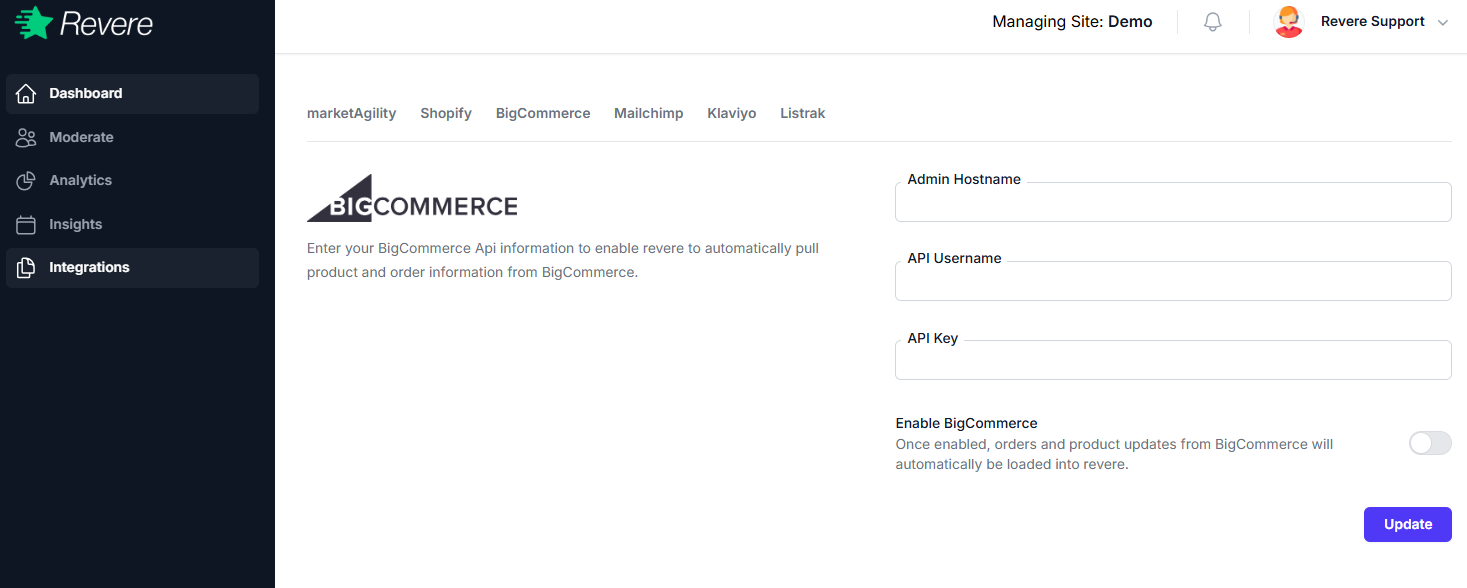
Connecting BigCommerce
-
1
Open Integrations in Revere
Click Integrations in the left navigation of your Revere dashboard.
-
2
Click Configure on the BigCommerce card
Find the BigCommerce tile and click Configure.
-
3
Enter your BigCommerce API credentials
You'll need your BigCommerce store hash, Client ID, Access Token, and Store API URL. These can be generated in your BigCommerce control panel under Advanced Settings → API Accounts.
-
4
Save and verify the connection
Click Save. Revere will test the credentials and show Active status if the connection is successful.
When creating the BigCommerce API account, ensure the scopes include Orders (read-only) and Products (read-only) at minimum.
Next: Install the Widget
After connecting the integration, install the Revere review widget on your BigCommerce theme to display reviews on product pages.
Custom Installation Guide