
Overview
The Listrak integration allows Revere to pass review request data to Listrak so your existing Listrak email automations handle the delivery of post-purchase review invitation emails. This is ideal if your team already manages email templates and flows inside Listrak.
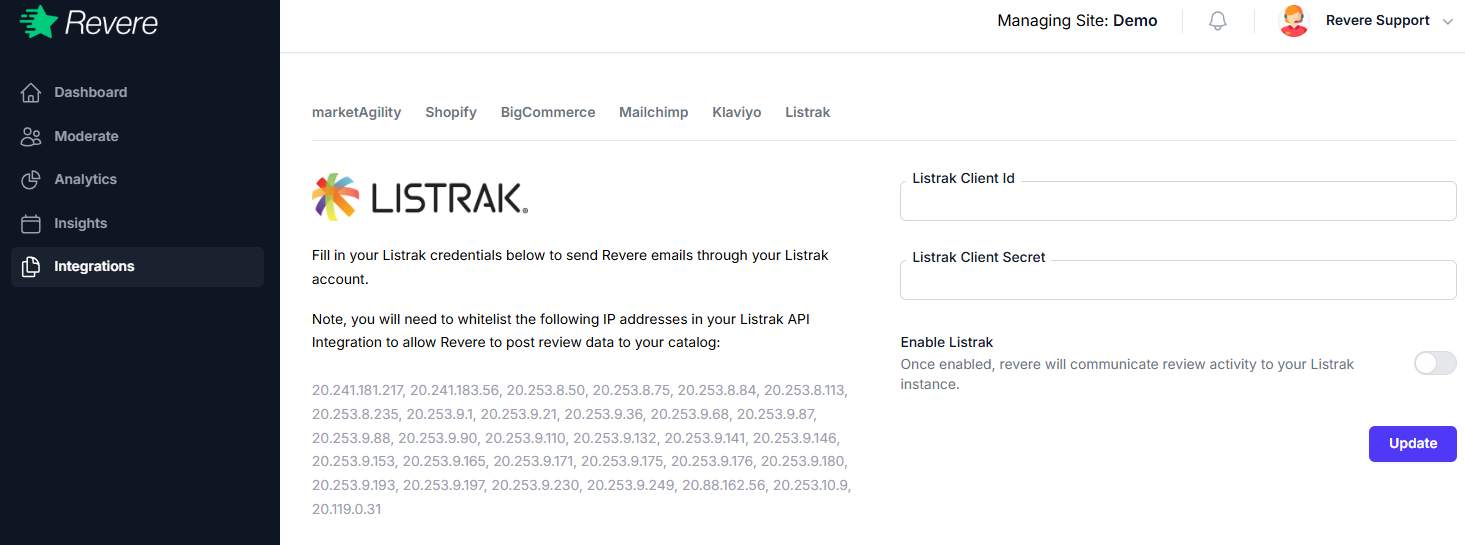
Connecting Listrak
-
1
Open Integrations in Revere
Navigate to Integrations and click Configure on the Listrak tile.
-
2
Enter your Listrak API credentials
You'll need your Listrak Client ID and Client Secret. These are available in your Listrak account under Manage → API Keys.
-
3
Configure review request triggers
Set which Listrak message or automation flow should be triggered when Revere wants to send a review request.
-
4
Save and test
Save your settings. Revere will confirm the connection is active. Run a test order to verify emails are being triggered correctly.
Important Notes
When using Listrak as your email provider, Revere's built-in email templates are bypassed. Make sure your Listrak automation includes the review request link dynamically passed by Revere.